
How to Promote a Call for Artists (and Reach Artists Beyond Your Followers)
In our latest article, I covered how to write a clear call for artists, from explaining eligibility and entry fees to telling artists what they need to submit. Now, let's look at how to get that call in front of the right people.
Your gallery's followers and members are a good place to start, but there are more artists you can reach through directories, schools, arts organizations, and direct invitations.
I'll show you how to use those channels, what to share, and how EntryThingy can help you find and invite suitable artists.
Quick Answer: How to Promote a Call for Artists
-
Copy the link to your call page and use it everywhere you share the call
-
Upload a call image that stays clear when it's cropped, since EntryThingy shows it on your call page, in the calls list, and on Instagram
-
Share the call on Instagram, Facebook, and LinkedIn, with the link where artists can click it
-
Invite past applicants, members, and previous exhibitors directly, for example with EntryThingy's bulk invitations
-
Find new artists who fit your call with EntryThingy's Recommended Artists, which suggests artists who live nearby or in your state
-
Send schools, guilds, and arts organizations a ready-to-share kit with your image, description, deadline, and link
-
Ask applicants how they heard about your call
1. Get the Link to Your Call Page
Every way to promote your call, from invitations to Instagram posts, needs a link that artists can click. Use the link to your call's own page, where artists read the details and apply. If you link to your homepage or a PDF instead, artists have to search for the application, and some may stop looking.
Your call page also needs to answer the questions artists ask before applying: Who can apply? How much does it cost? When is the deadline? What do selected artists get? If any of these are missing, our checklist for writing a call for artists walks through each detail to include, from eligibility and fees to dates and application steps, and shows where each one appears on an EntryThingy call page.
For example, if your call is on EntryThingy, you'll find its link on the call's Overview:
-
Log in to your EntryThingy account and select Calls in the navigation menu.
-
Click the name of your call to open its Overview.
-
Under Promote your call, select Copy link.
Here's how that looks on EntryThingy, with Copy link next to your call's public link:
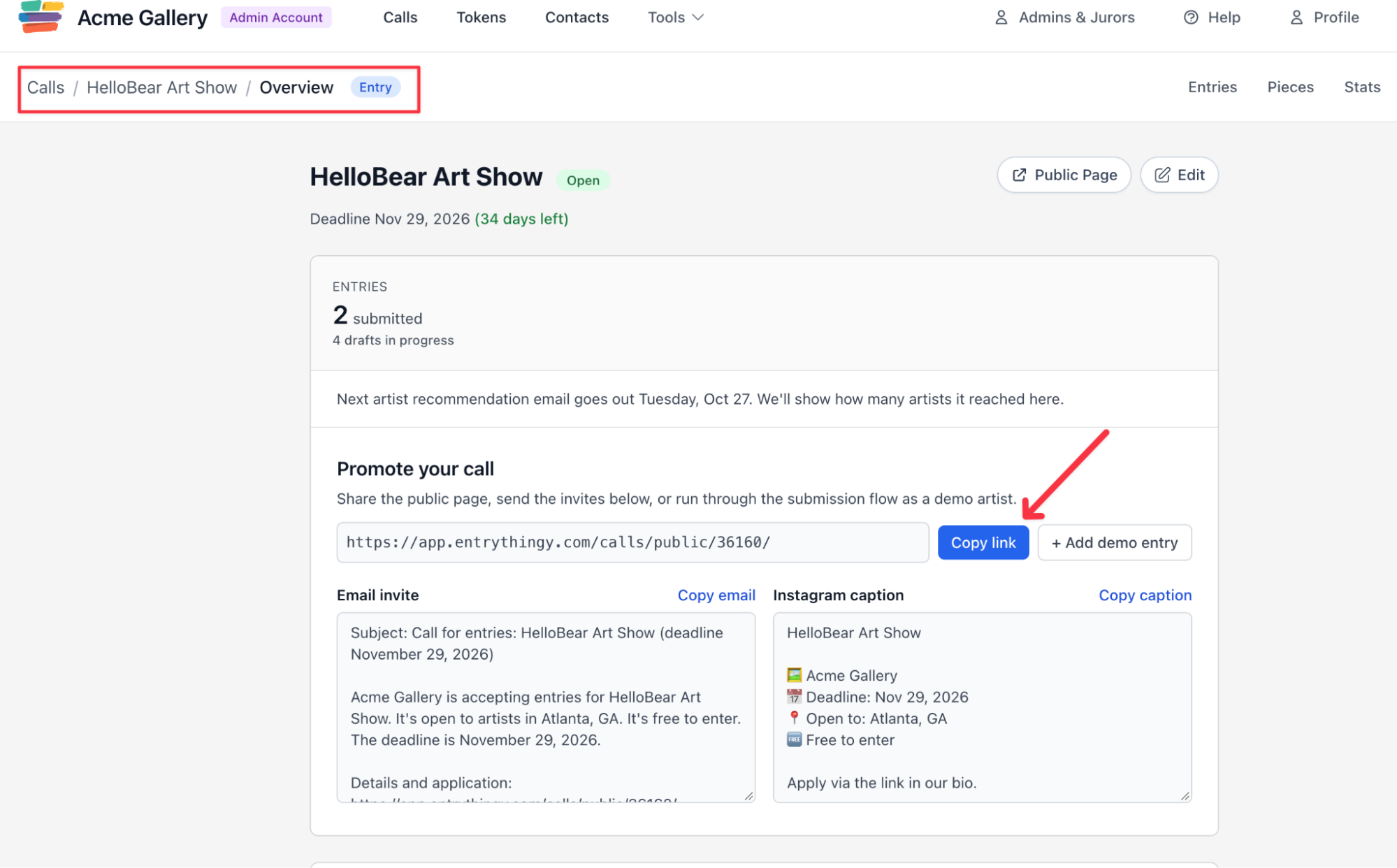
The same section has a ready-made email invite and Instagram caption, so you don't have to write the announcement from scratch (point 3 shows how to use them).
Use this one link everywhere you share the call: email invitations, newsletters, partner emails, directory listings, Facebook and LinkedIn posts, and the call page on your gallery's website. On Instagram, where links in captions aren't clickable, put it in your profile instead.
2. Prepare a Call Image That Works at Every Size
Your call image will appear everywhere you share the call: on your call page, in directories like the EntryThingy calls list, in link previews on email and social media, and on our Instagram. Each place shows it at a different size and crops it differently, so you need an image that still looks clear when it's small.
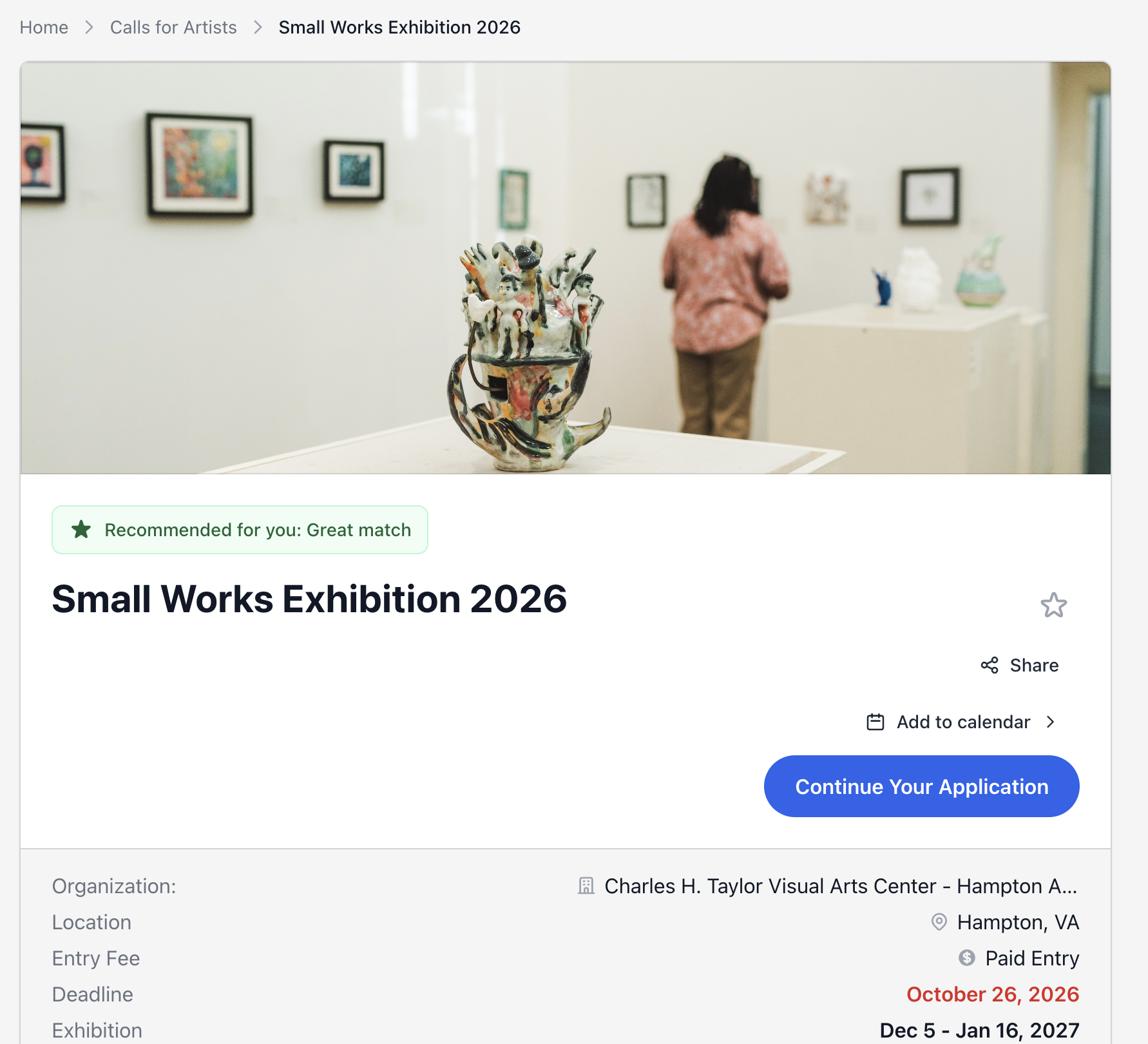
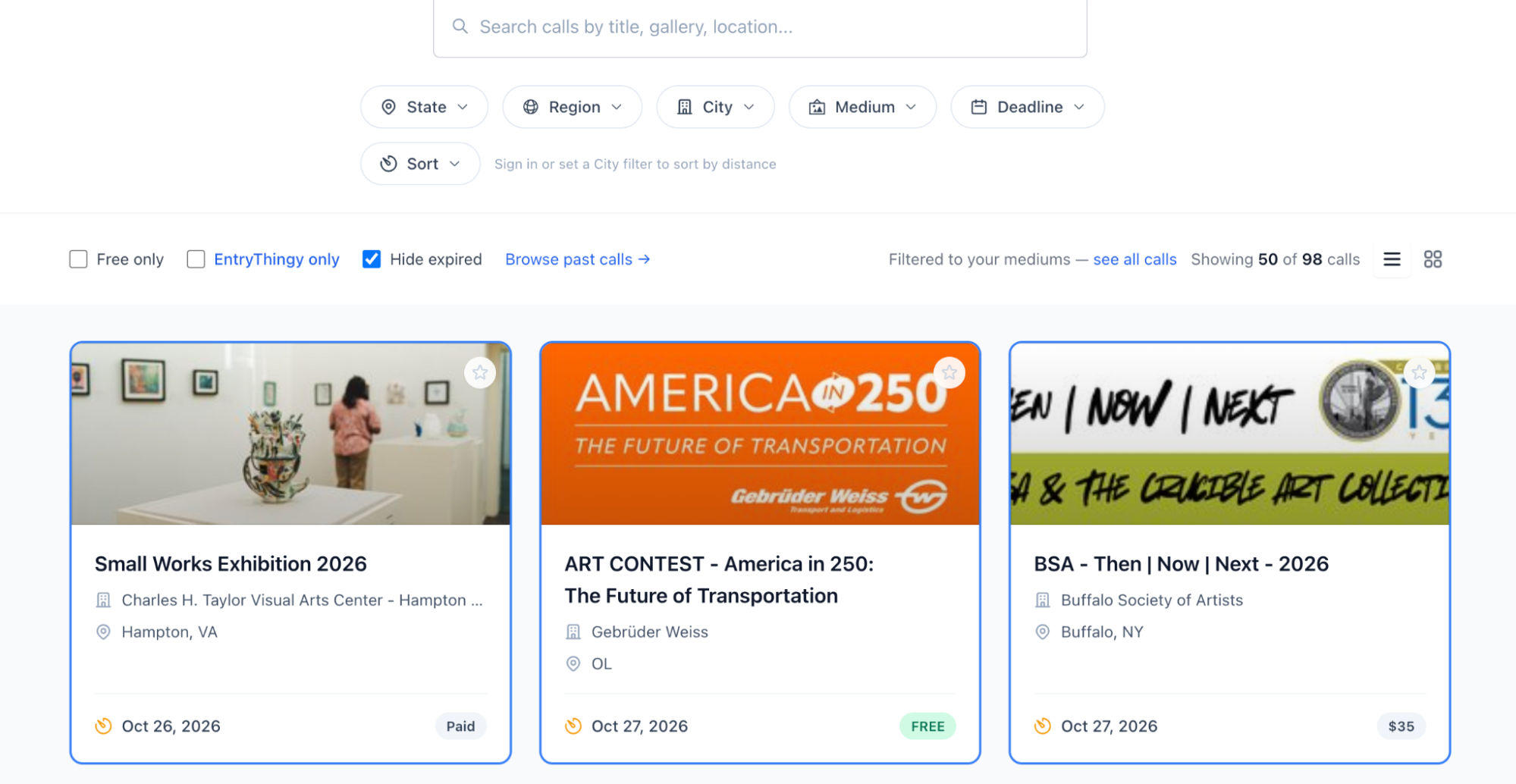
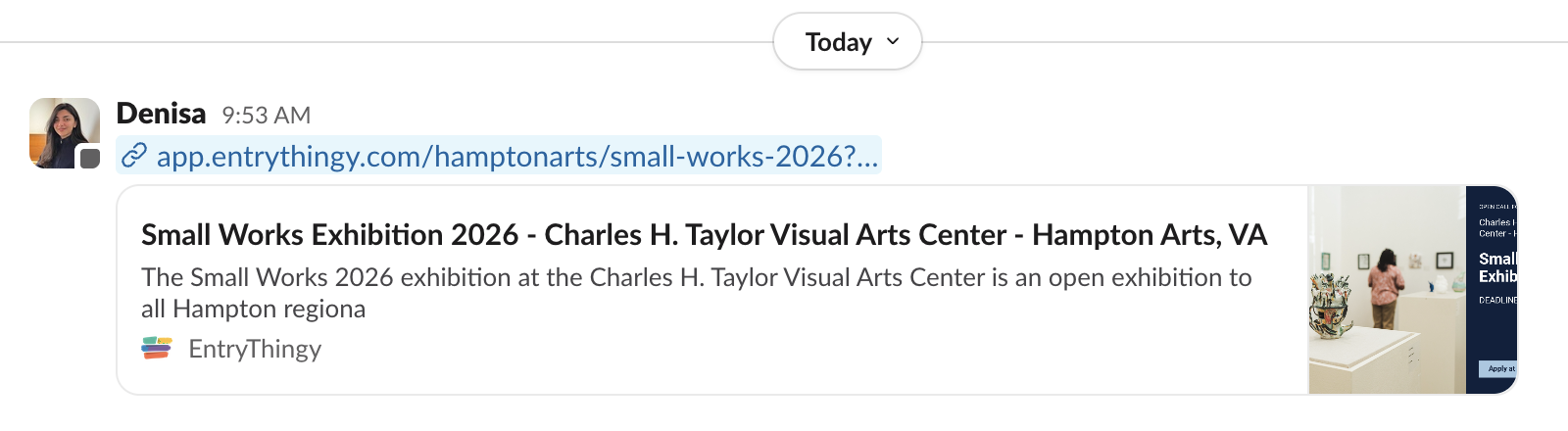
Here's how the image appears on EntryThingy, using the Small Works Exhibition 2026 call from the Charles H. Taylor Visual Arts Center in Hampton, Virginia, as an example:
On the call page: a full-width banner across the top of the page
In the calls list: a cropped band on the call's card, with the top and bottom of the image trimmed
In link previews: a small thumbnail next to the call title and the start of your call description when someone shares the link by email, text, or social media. Here's an example shared in Slack, but most social platforms show a similar preview.
To look clear in all three places, your image needs its main subject in the center, because each crop trims a different part of the edges. These images work well:
-
A photo from a previous exhibition
-
An artwork from a past show, used with the artist's permission and credited
-
An artwork that fits the call's theme or medium
-
A photo of your gallery or exhibition space
-
A simple graphic with the call name and little else
Keep text in the image to a minimum, because artists already see the call title and deadline next to it, and small text is hard to read on a card or thumbnail. If you add a logo or a few words, place them in the center so no crop cuts them off.
Our image guide recommends a landscape image of 1500 x 785 pixels, at least 1200 pixels wide. You can upload a JPG, PNG, GIF, or iPhone HEIC file up to 20 MB when you create the call or later when you edit it.
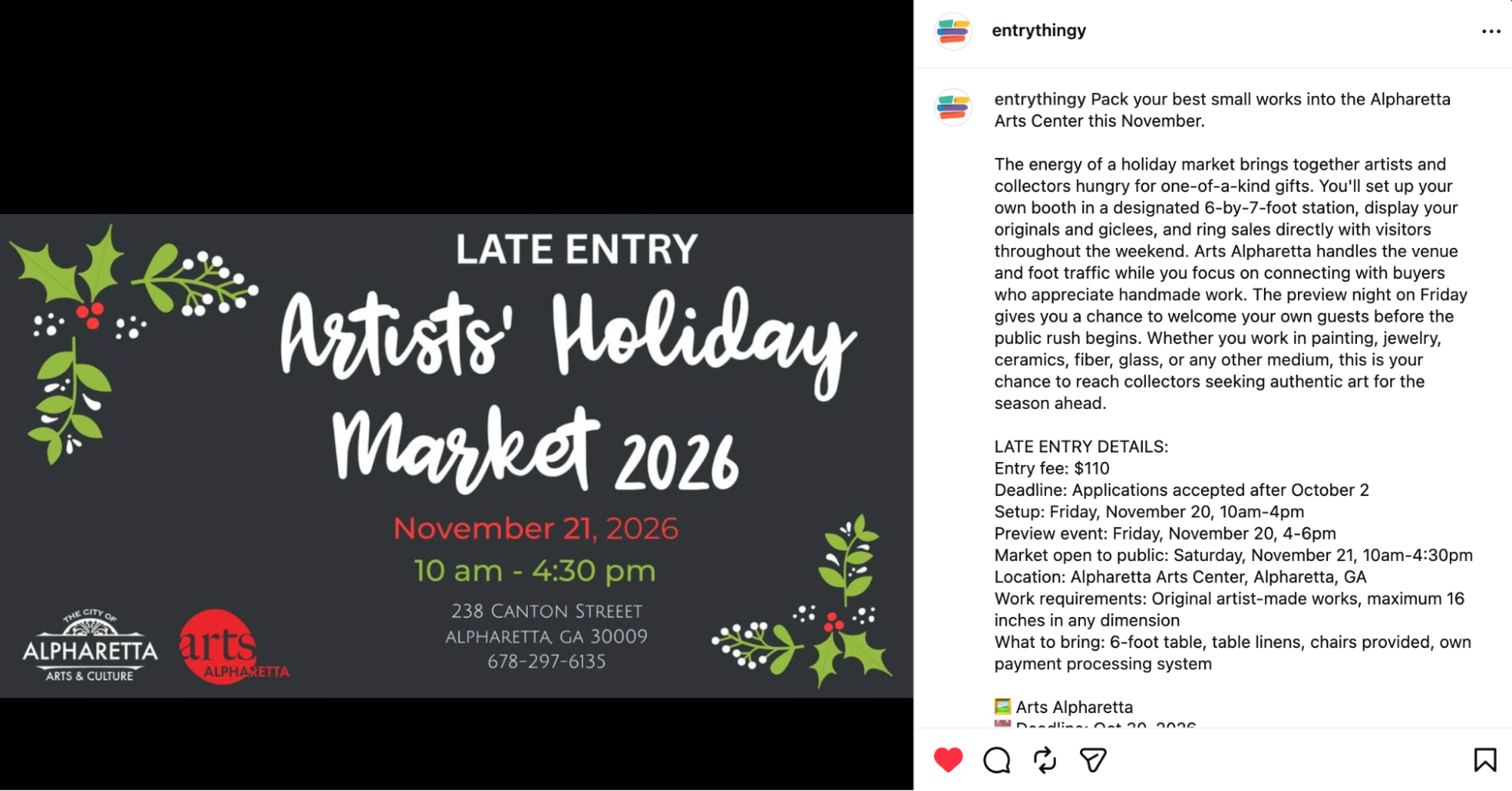
Your image also gets your call onto our Instagram, which has nearly 13,000 followers. When you upload an image while creating a call, our team gets a notification, reviews the image, and prepares a post. We write the caption from your call description, usually covering the location, theme, accepted media, entry fee, and the gallery or institution, so the more detail your description has, the more useful the caption is for artists.
Here's a call we shared on Instagram:
3. Share Your Call on Social Media, With the Link Where Artists Can Click It
Posting on social media keeps your call in front of your followers, and reshares carry it to theirs. What matters most is where you put the link:
-
Instagram: Links in post captions aren't clickable. Add your call link to your profile and write "link in bio" in the caption. In Stories, add the link with a link sticker.
-
Facebook and LinkedIn: Paste the link directly into the post. Both show a preview with your call image.
-
Messages and group chats: Such as Slack, WhatsApp, or email. Paste the link, and the preview appears automatically, like the Slack example I mentioned above.
You don't have to write each post from scratch. On EntryThingy, your call's Overview has a ready-made email invite and Instagram caption built from your call details. The Instagram caption already ends with "Apply via the link in our bio," and the email invite includes your call link.
Here's how that looks on EntryThingy: under Promote your call, select Copy email or Copy caption.
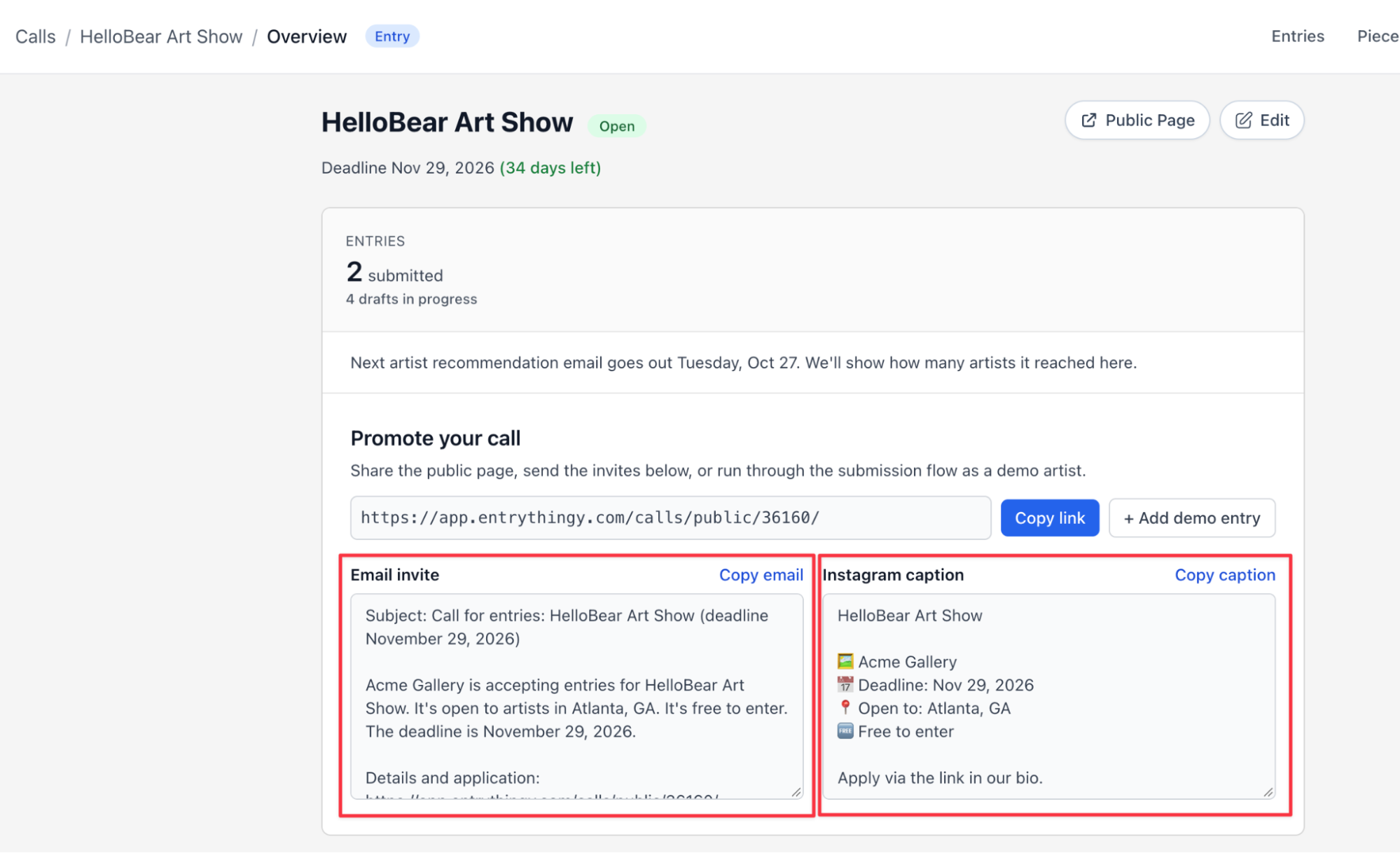
Post more than once, and give people a new reason to look each time. Introduce the call first, then the juror, then photos from last year's show, and finish with a deadline reminder that gives the exact date, time, and time zone.
Reshares from people with relevant audiences carry your call further. Send them the caption and image from your kit, and ask:
-
Previous exhibitors, who know other artists in their medium
-
Members, who can forward the call to eligible friends and colleagues
-
Partner galleries, for their posts or newsletters
-
Jurors, who can share the public call without endorsing any applicant
If we post your call on our Instagram, reshare it to your Stories or feed. You can also tag @entrythingy in your own posts about the call, and we may reshare them.
4. Invite Past Applicants, Members, and Previous Exhibitors First
Start with the artists who already know your gallery: people who applied to your past calls, your members, and artists you've exhibited. They know your name and how your shows work, and some calls are open only to members. A direct invitation is also harder to miss than a line in your regular newsletter.
Only email people who agreed to hear from you, such as members, newsletter subscribers, and past applicants.
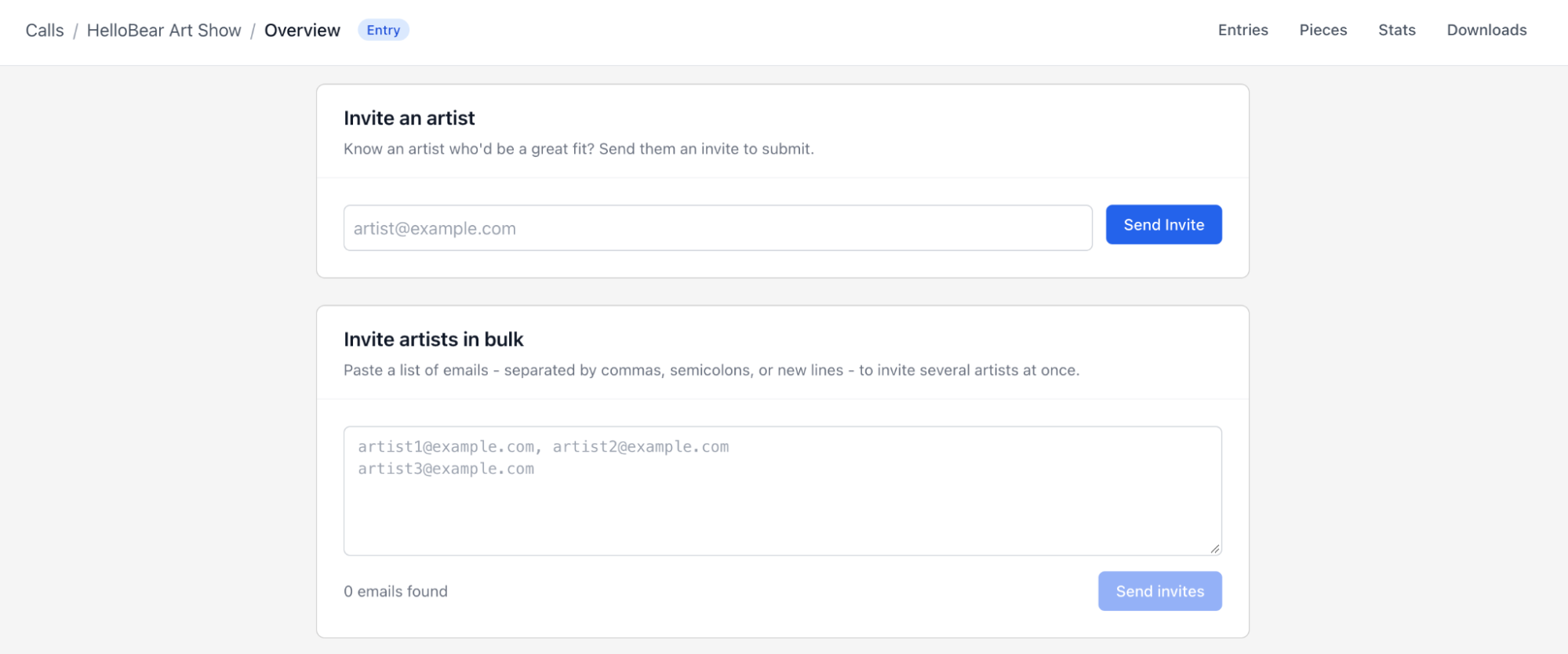
Emailing each artist separately takes hours with a long list, and pasting the call link into every message is easy to get wrong. On EntryThingy, you can send your whole list a personal invitation from inside the call, and each invitation includes a direct link to your call page:
-
Open your call's Overview and scroll to Invite artists in bulk.
-
Paste your email addresses into the field. Separate them with commas, semicolons, or new lines.
-
Select Send invites.
To invite just one artist, use Invite an artist right above it: enter their email address and select Send Invite. Here's how that looks on EntryThingy, with the single invite above the bulk field:
Each artist gets a personalized email invitation with a direct link to your call. For artists you've exhibited, you can also send a short personal note. Make it clear that you're inviting them to apply, not offering them a spot in the show.
Here's an example you can adapt:
Hi Maria,
We've opened applications for Small Works 2027, our juried exhibition of works under 12 inches, and thought of you after your piece in last year's show. Entries are reviewed by this year's juror, and the deadline is March 6 at 11:59 p.m. Eastern.
You can read the full call and apply here: [direct call link]
5. Use Artist Recommendations to Reach Beyond Your Own List
Your own list only includes artists you already know. To find more artists who fit your call, use artist recommendations. They are suggested artists based on where they live or their history with your gallery. You can review the suggestions and choose who to invite.
In EntryThingy, Recommended Artists sits right below the bulk invite field on your call's Overview. We base the suggestions on each artist's profile and their history with your gallery. Under each artist, you'll see why they were suggested:
-
They applied to your gallery before.
-
They live near the call's location.
-
They are based in the same state as the call.
Here's how that looks on EntryThingy: each artist shows the reason they were suggested, with an Invite button next to them:
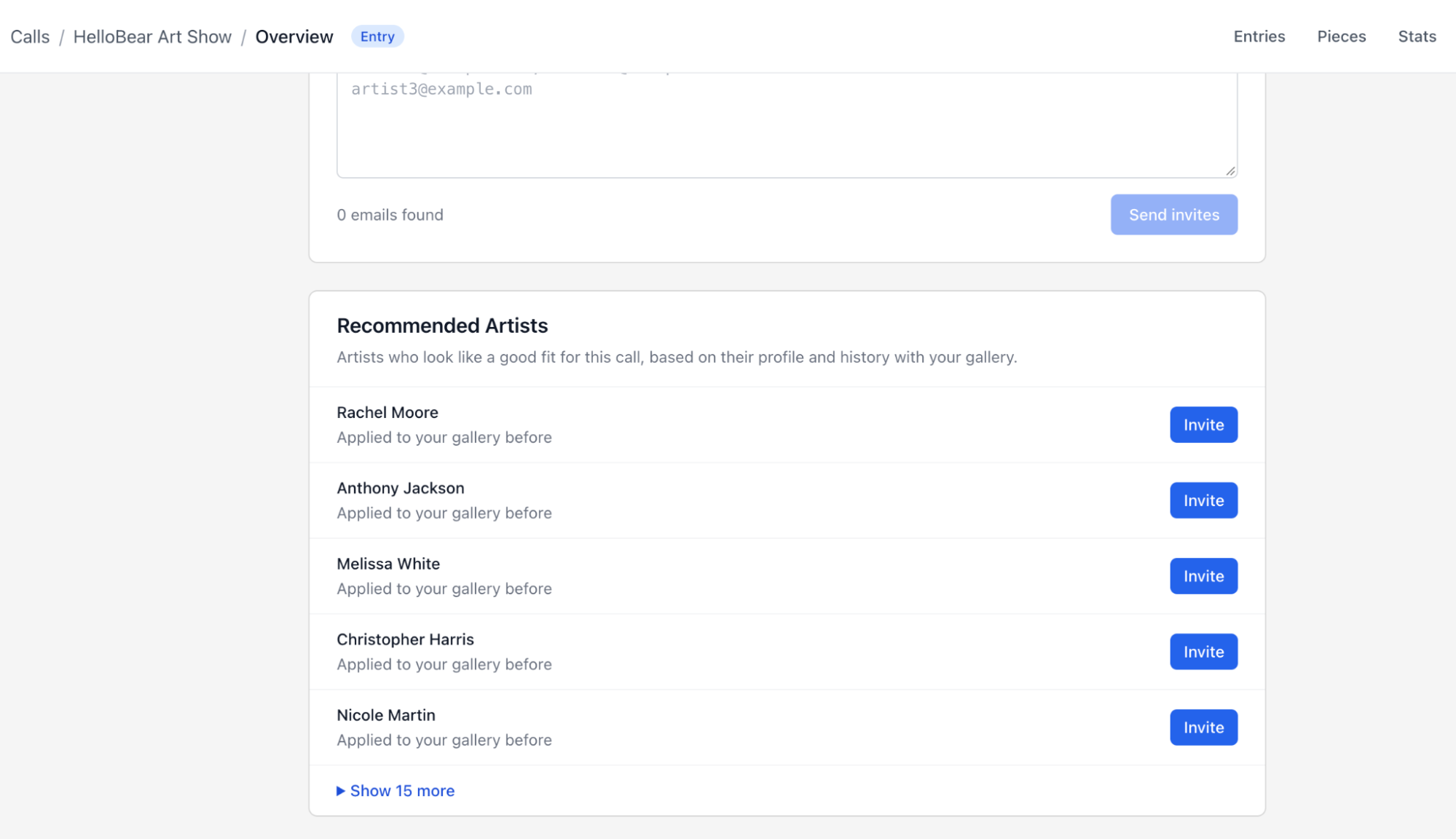
Select Invite next to each artist you want, and they'll get an invitation with a direct link to your call.
6. Send Schools, Guilds, and Arts Organizations a Ready-to-Share Kit
You can also share your call with schools, guilds, and arts organizations, which can pass it on to their members through newsletters, email lists, and social accounts.
Pick ones whose members can actually apply, such as a college art department for a student call or a ceramics guild for a ceramics show. Send your call image, link, and deadline in one email, so they can share it without writing anything themselves.
Writing to each organization takes time, though. On EntryThingy, your call already reaches artists without those extra emails, because browsing calls and applying is free for artists, and thousands of them visit the calls list every week. Our guide to how we promote calls shows the other ways we share it.
Here's a caption you can adapt:
Applications are open for [Call Name], organized by [Organization]. The opportunity is open to [eligible artists] working in [medium]. Apply by [deadline]: [direct link].
7. Ask Applicants How They Heard About Your Call
To find out which channels worked, ask artists on the application. A multiple-choice question takes them a few seconds and gives you answers you can compare.
On EntryThingy, add it as a custom question:
-
Go to Calls, open your call, and select Edit Call.
-
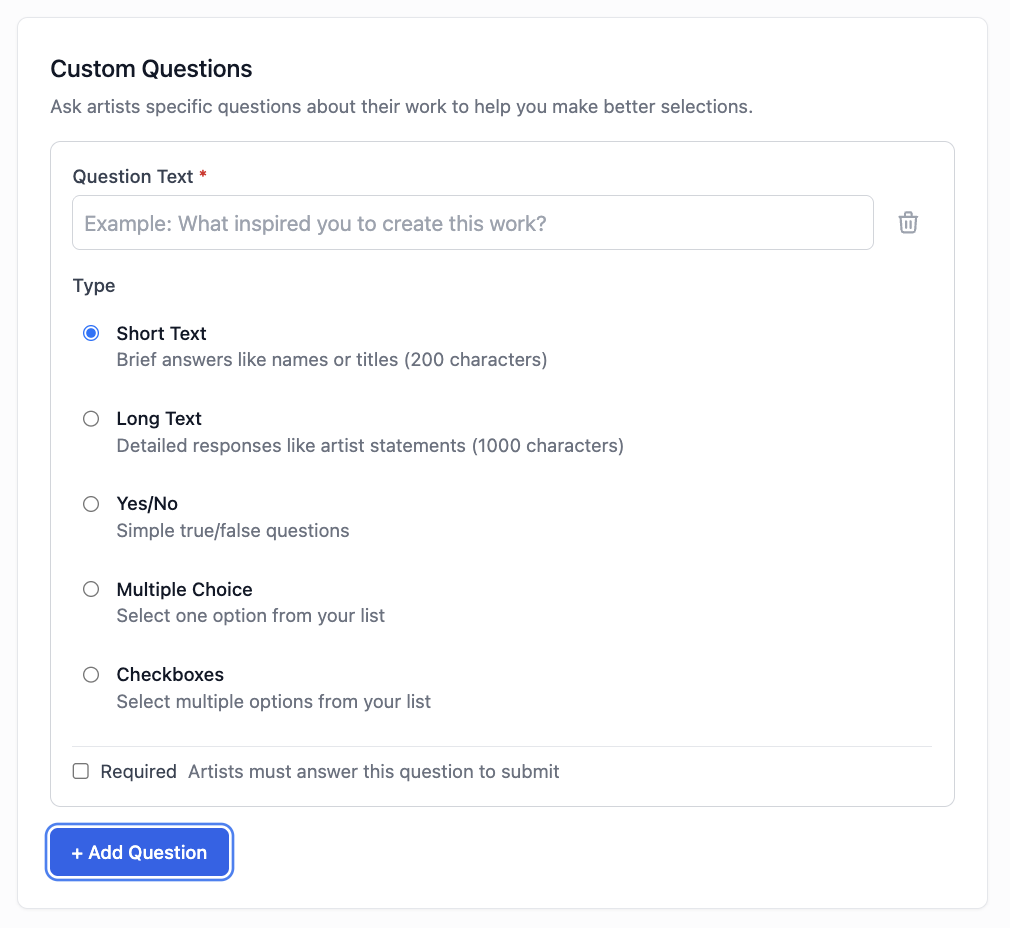
Expand Entry Requirements, then scroll to Custom Questions. Questions in this section appear once per application.
-
Select Add Question and type "How did you hear about this call?" in Question Text.
-
Under Type, choose Multiple Choice so artists pick one answer, or Checkboxes so they can pick every place they saw your call. Then enter one answer option per line.
-
Check Required if every applicant should answer, then select Save Call.
Here's how that looks on EntryThingy: write your question in Question Text, choose the answer type under Type, and check Required at the bottom.
For the answer options, list the channels you used to promote the call. For example:
-
EntryThingy calls list
-
Invitation from the organizer
-
EntryThingy email or recommendation
-
Our newsletter
-
Instagram or other social media
-
Art school or university
-
Arts council or association
-
Another artist
-
Other
You'll find the answers on each entry's detail page and as a column in your CSV export. From there, you can check which channels brought in artists who fit your call, not just the most applications. Then use what you learn to plan your next call.
Create and Promote Your Next Call With EntryThingy
On EntryThingy, you can publish your call with its image, invite your own list and recommended artists from inside the call, and review the applications in the same account.
Create a gallery accountFAQs
How far in advance should I promote a call for artists?
It depends on how much artists need to prepare. A call that asks for new work or detailed proposals needs more time than one that accepts existing pieces. Also ask partner organizations when their newsletters go out, so your call reaches their readers before the deadline.
Can I invite artists without promising acceptance?
Yes. Say clearly that you're inviting the artist to apply and that every application goes through the same selection process. If your call is juried, our guide to running a juried art show shows you how to set up a review process artists can trust.
Should I pay to advertise my call?
Try the free channels first: your own lists, invitations, directories, partner organizations, and social media. Some directories charge for listings or email promotion. Before you pay, check that the directory's audience matches your eligibility rules and that the cost fits your budget.