
Jurying an art show sounds simple until you are looking at submission number 200 and cannot remember how you scored the first fifty.
The format matters. The order matters. The scoring system matters. And none of that should be something you figure out as you go.
We recently covered how to run a juried art show from the organizer's side. This guide covers the other half: what happens when you are the one invited to review the work.
Jurying on EntryThingy: How the Platform Works
EntryThingy is a platform built specifically for galleries, arts organizations, and museums to manage their calls for art, submissions, and jury processes.
If you have been invited to jury a show and received a login link, it is likely because the gallery running it uses EntryThingy to manage the full process, from collecting submissions to coordinating reviewers and announcing results.
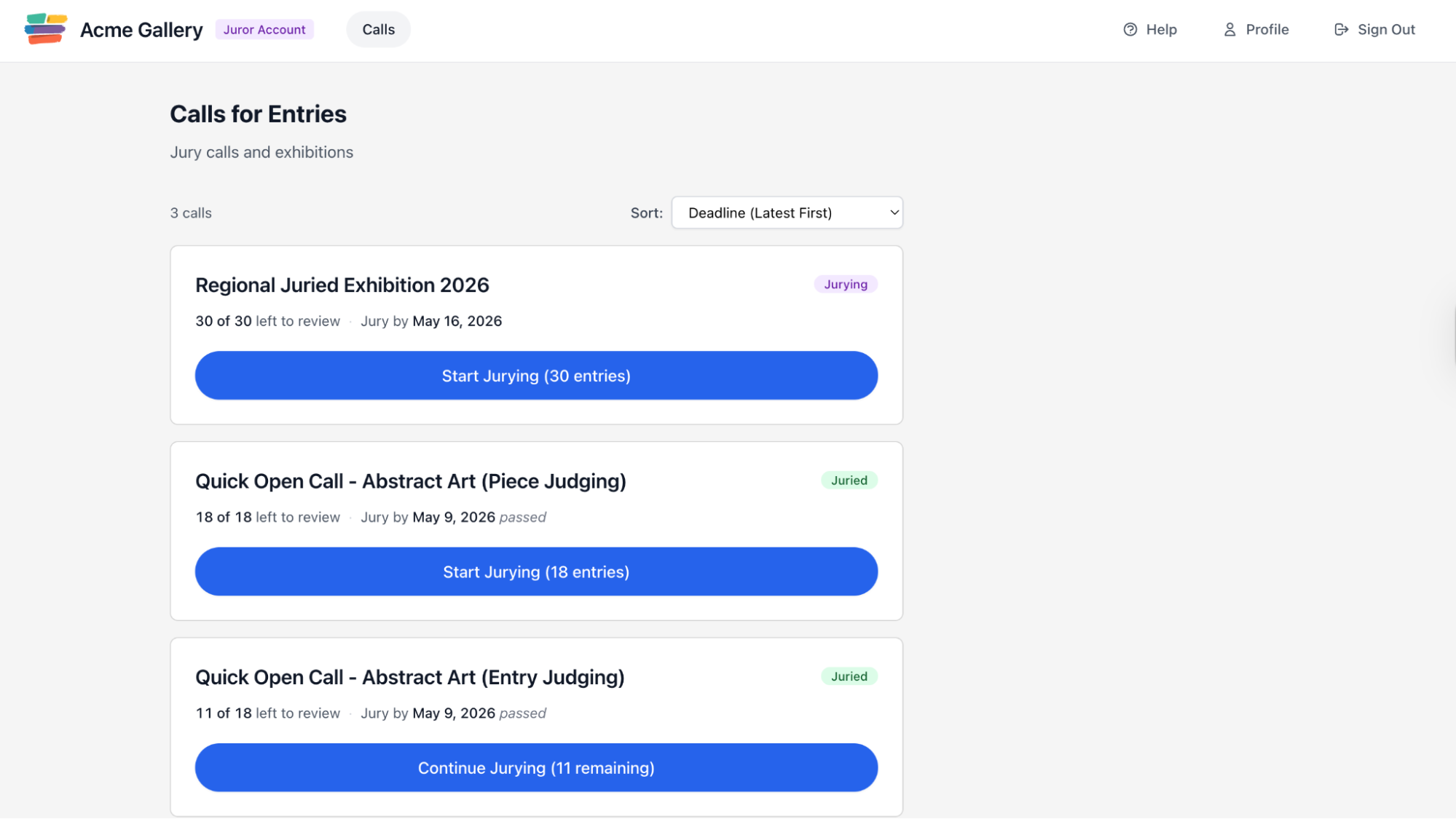
As a juror, you get your own dedicated account. When you log in, you will immediately know you are in the right place: the account badge at the top of the page says "Juror Account" and your role is listed as juror. The only option in your navigation is Calls.
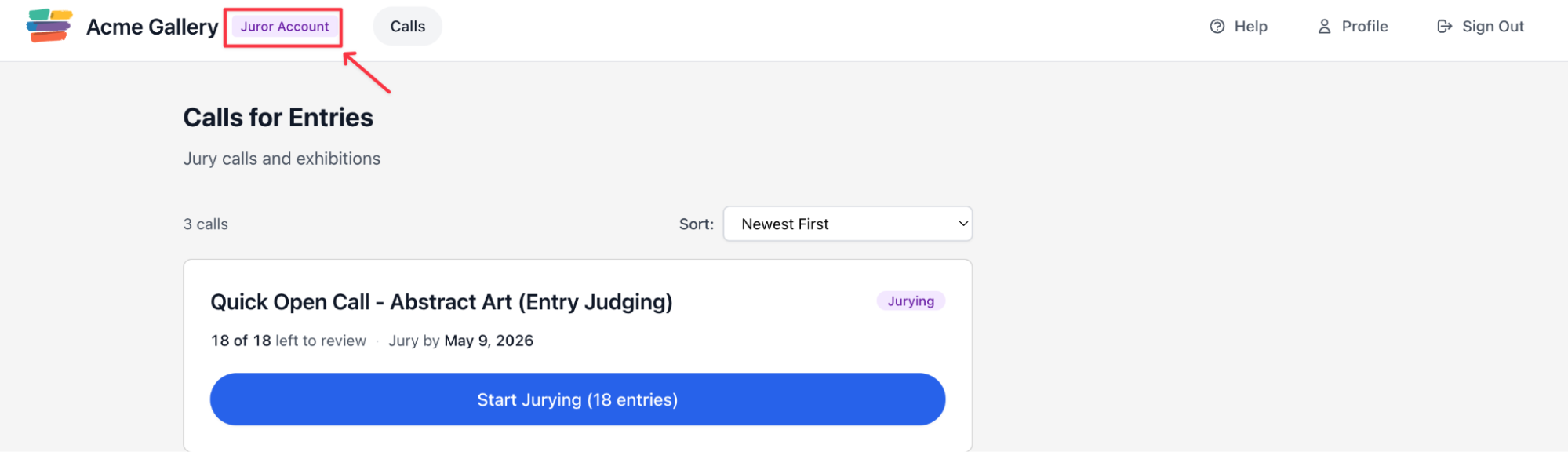
That is intentional. EntryThingy designed the juror interface this way so that when you log in, it is immediately clear what you are there to do. No extra tools, no admin settings, no distractions. Just the calls assigned to you and a prompt to start reviewing.
All the calls you have been assigned to jury appear on this page, each showing how many entries are left to review and the deadline for your votes.
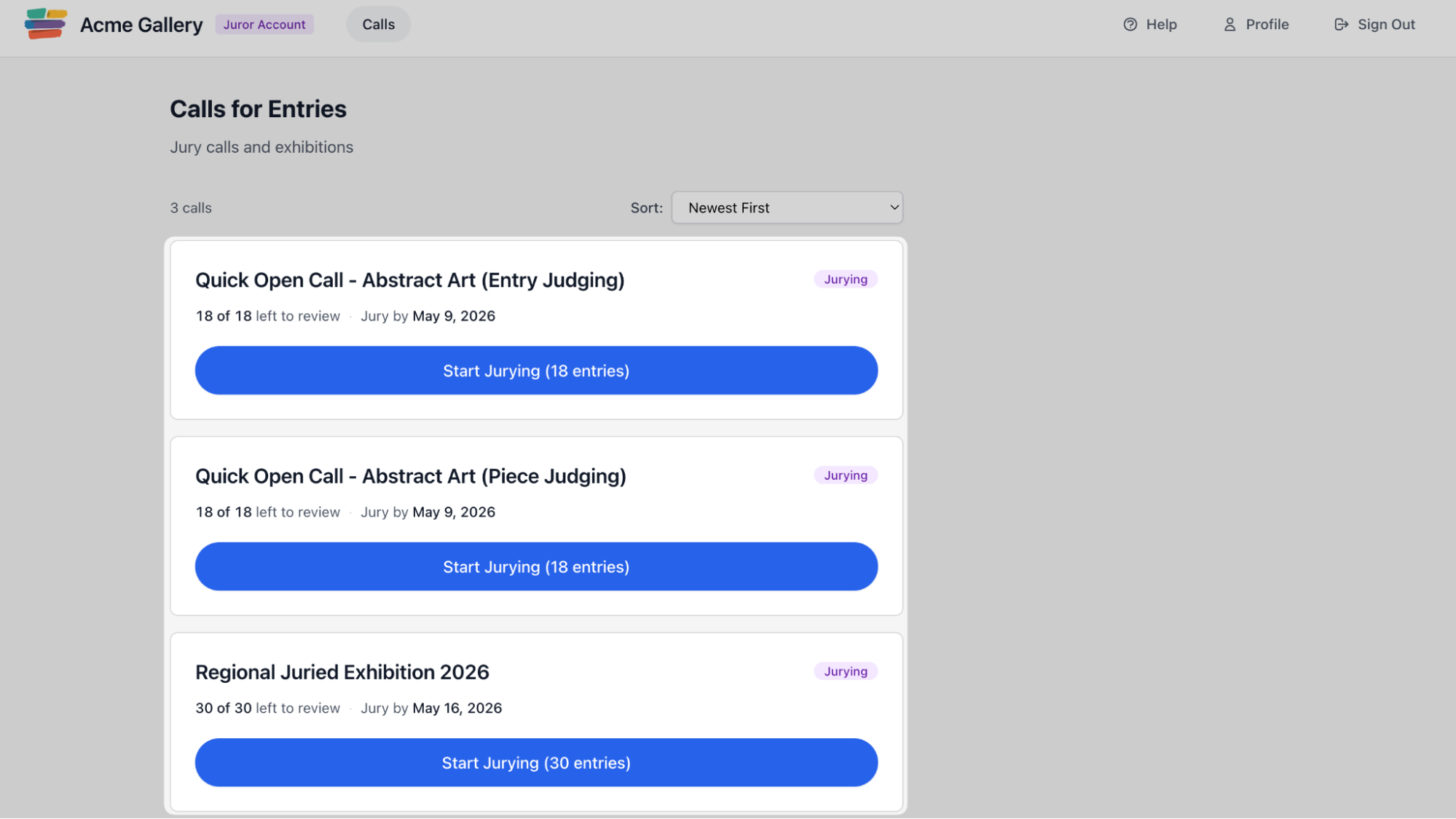
What to Do If Your Call Is Not Showing Up
If you log in and do not see the call you were invited to jury, the administrator has not yet assigned you to it in their settings. You will need to ask them to assign you to their call setting. If you need more help, the EntryThingy help center has step-by-step guidance.
If you can see the call but there are no entries to review, the administrator needs to update the status of the submissions to show them to the jury.
On EntryThingy, entries that are still marked as submitted, not submitted, or assigned to a group will not populate in your queue until the admin moves them to jury status. Again, a quick message to the organizer is all it takes.
Both of these are setup issues on the admin side, not problems with your account. If you reach out to the gallery with either of these issues, they should be able to resolve it in a few minutes.
The Two Jury Formats You Will Encounter
The gallery sets the jury format before the call opens. As a juror, you do not choose it. But knowing the difference helps you approach the review with the right mindset.
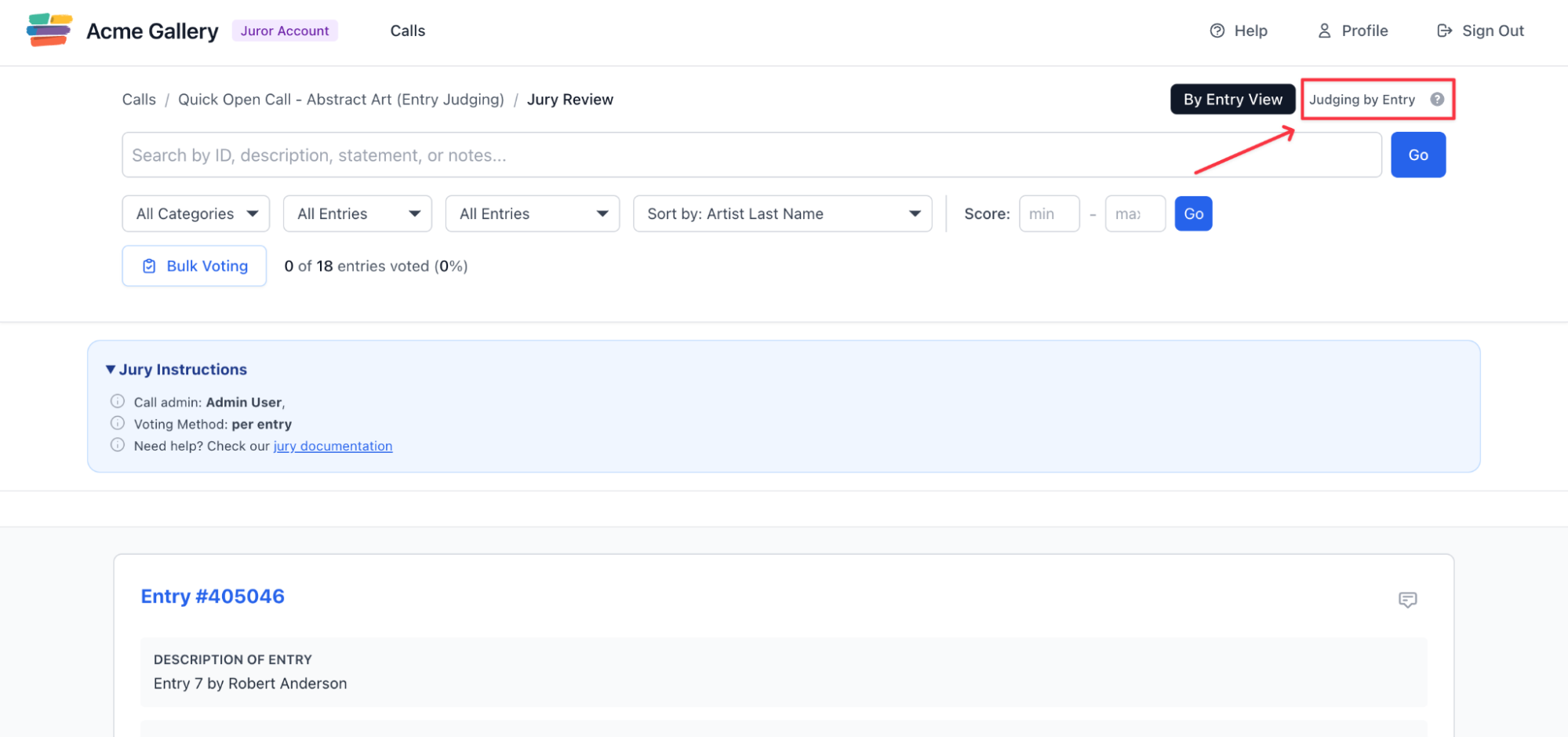
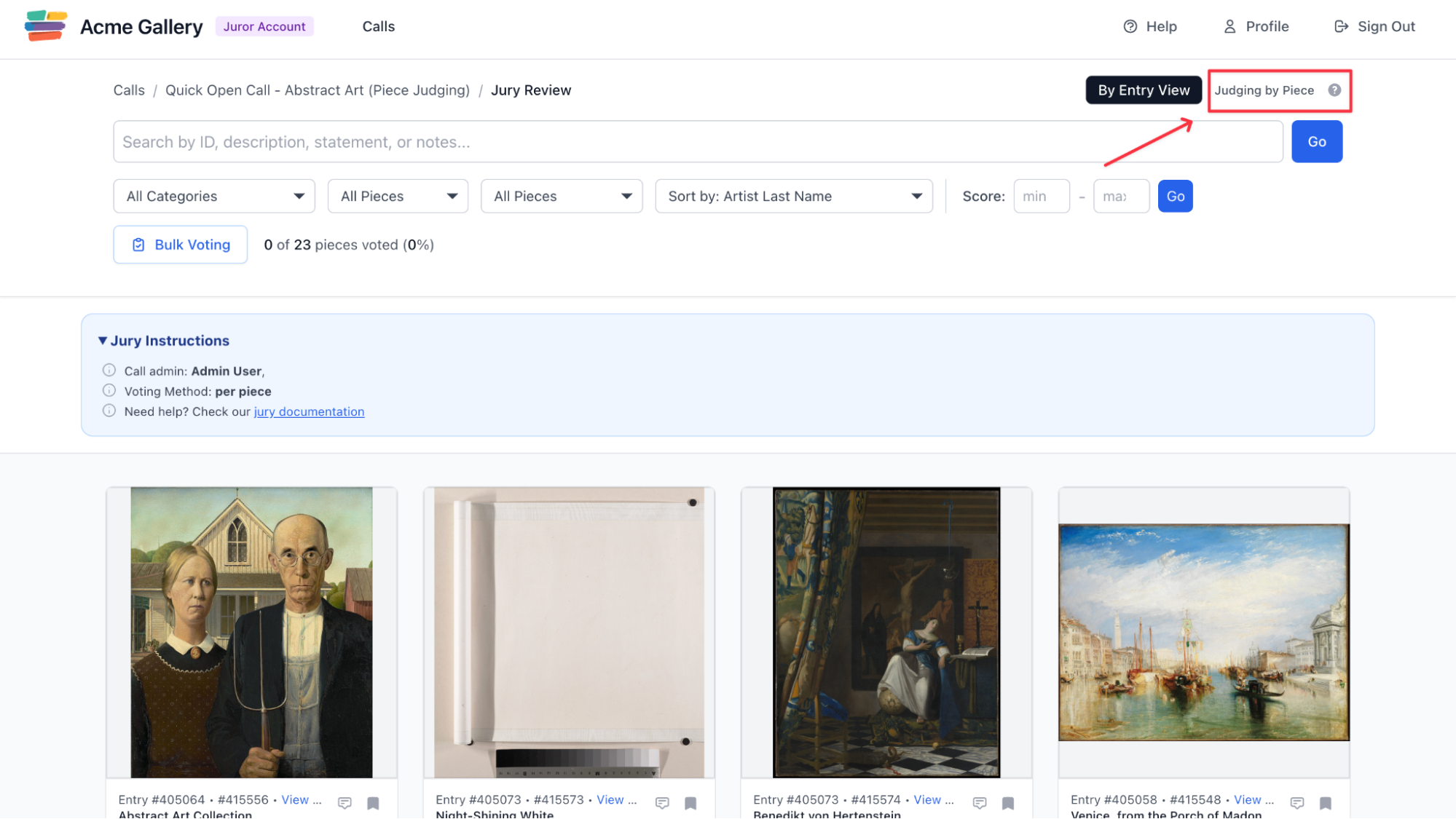
On EntryThingy, you can tell which format you are in as soon as you open the jury wall. You will see either "Judging by Entry" or "Judging by Piece" in the top right corner of the page.
- Voting by entry means you evaluate each artist's full submission as one complete package. All their pieces, their artist statement, and any details they filled in for the show appear together. You make one decision on the submission as a whole. This format works well when the gallery is selecting artists for the exhibition.
- Voting by piece means each individual artwork appears separately in a grid. Two pieces from the same artist might sit right next to each other, or they might not. You score each piece on its own terms, independently of the others. One piece from an artist might be accepted while another is not. This format works well when the gallery is curating specific works for a themed exhibition.
How Voting by Entry Works
When you open a call set to voting by entry, each artist's submission appears as a card on the jury wall. You can click into any submission to see all their pieces at full size, read their artist statement, and review any details they filled in for the show.
If the call is not set up for blind jurying, you will also be able to see the artist's name and click through to their profile.
The voting box sits directly on each card. What you see there, the categories and the scoring scale, is configured by the administrator specifically for this call. A simple call might just ask for a one or a zero: yes or no.
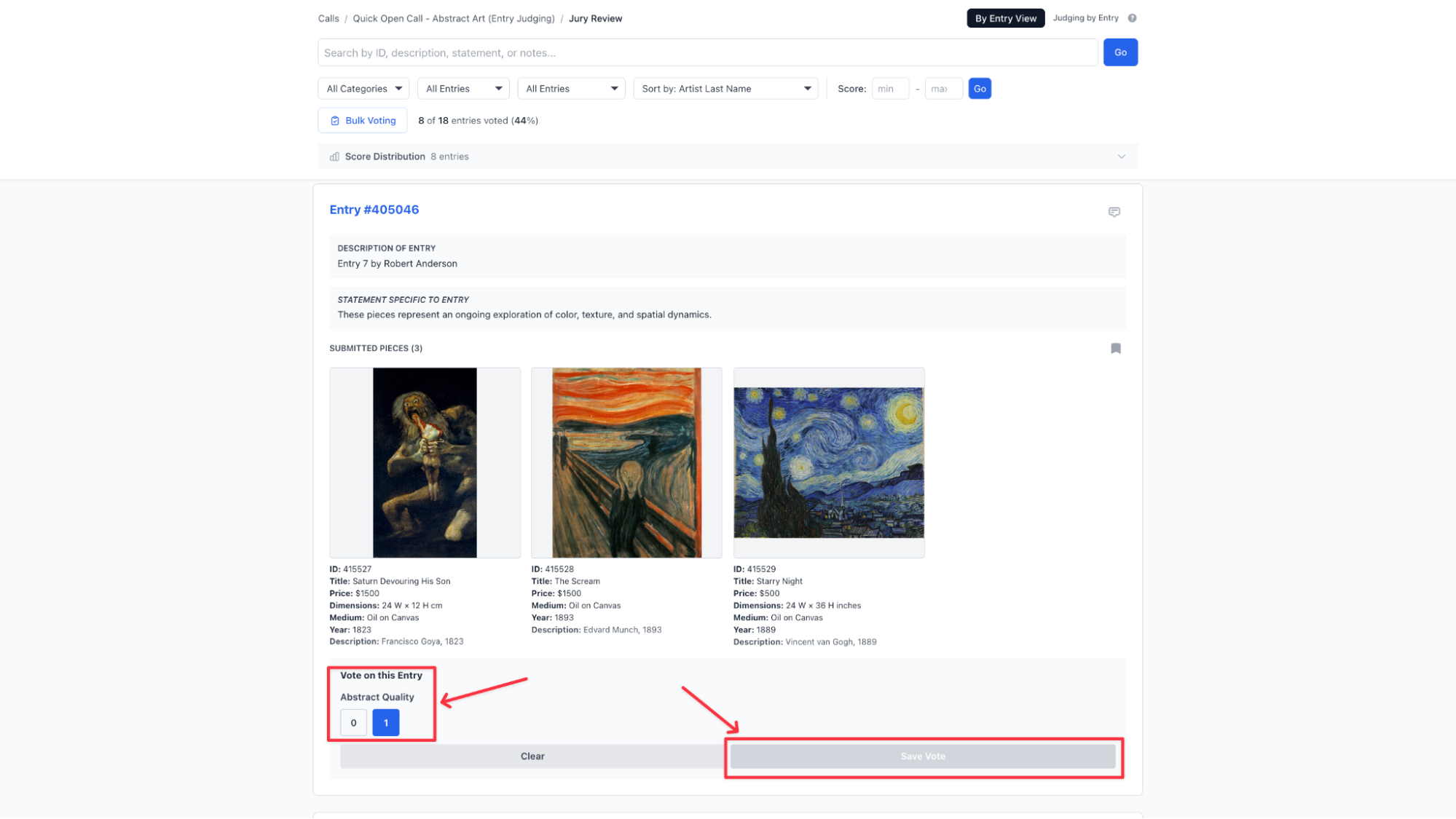
A more detailed call might use a scale of one to five. If you are unsure what a particular score means, check the jury instructions on the call page.
If the instructions do not answer your question, reach out to the administrator directly. They set the scoring rules, not the platform.
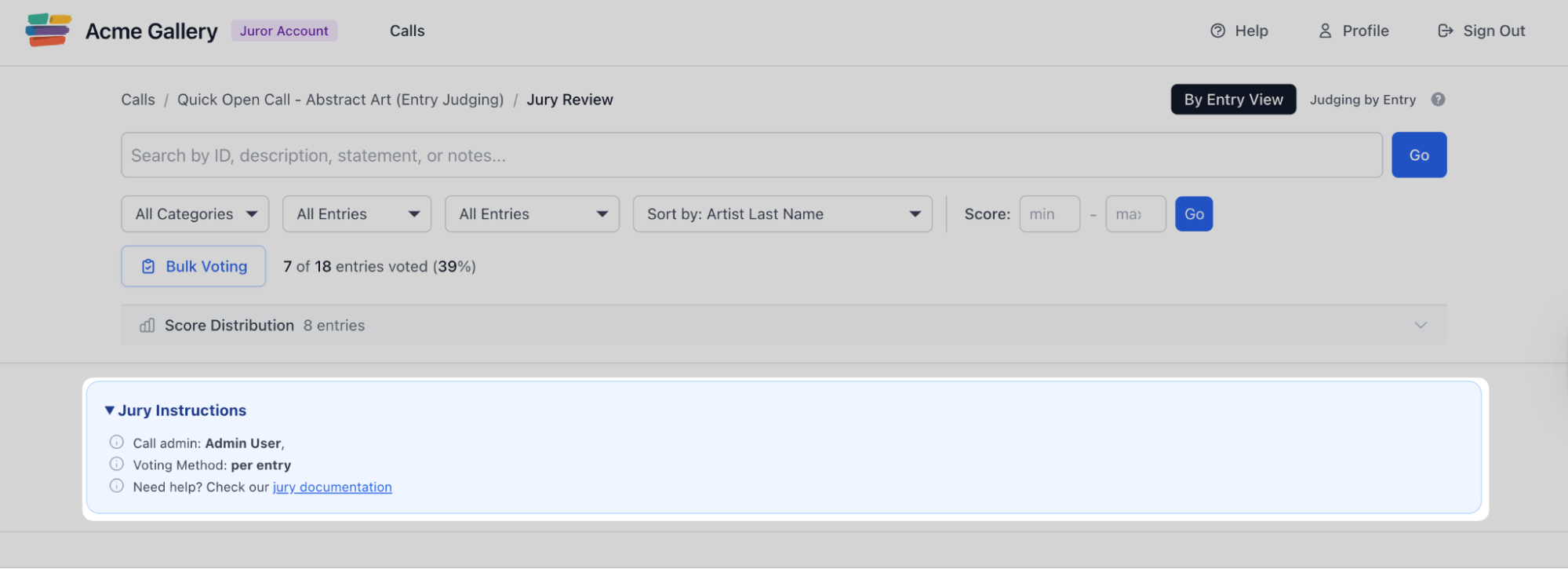
Once you cast a score, you can always go back and change it or clear it entirely. Nothing is locked until the administrator closes the jury.
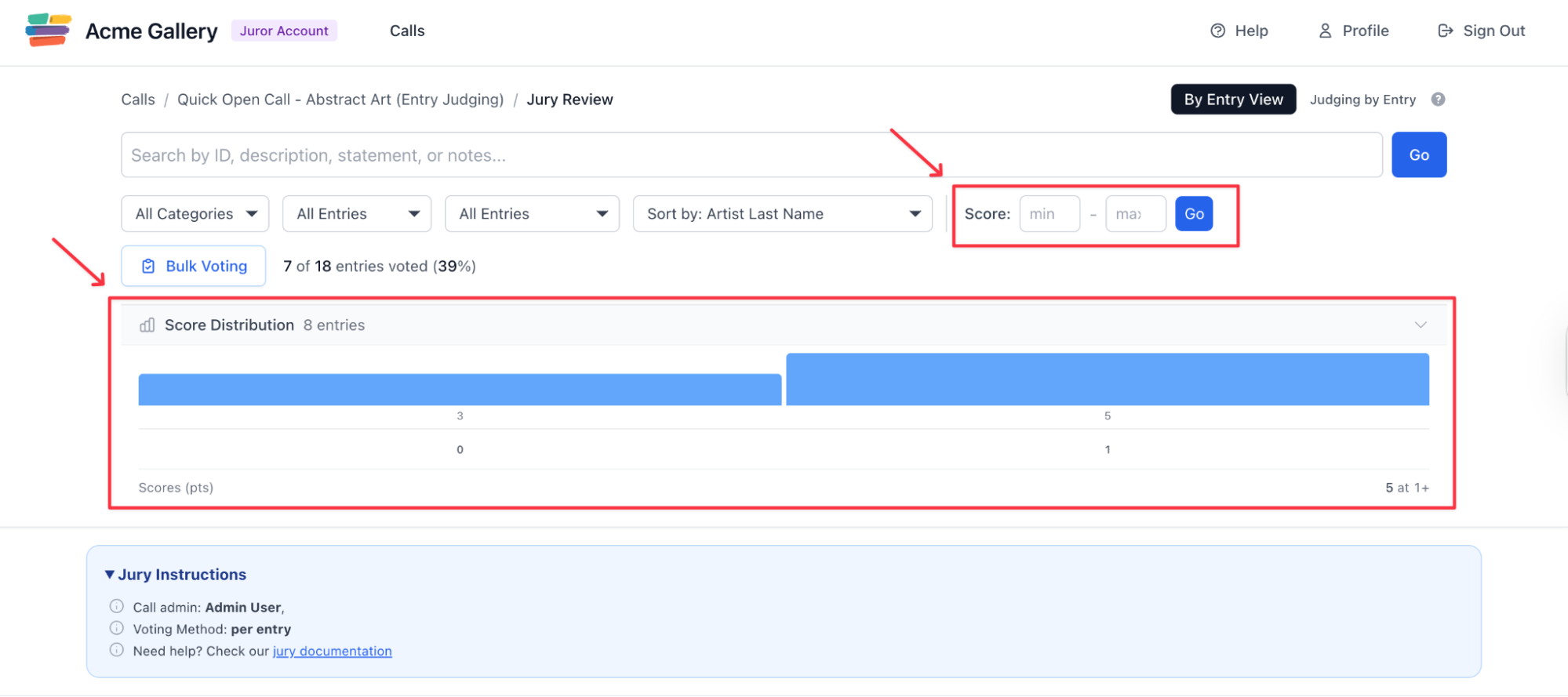
On EntryThingy, a progress bar at the top of the page shows how far through the call you are, and a score distribution view gives you a real-time breakdown of the votes you have assigned so far. You can also filter your queue by score range if you want to revisit everything you gave a particular score before you finish.
How Voting by Piece Works
In piece voting, the jury wall looks different from what you see in entry voting. Instead of cards grouped by artist, you see a grid of individual artworks. Each piece is scored on its own, regardless of which submission it came from.
Two pieces from the same artist might appear side by side in the grid or they might not, depending on the order they were submitted.
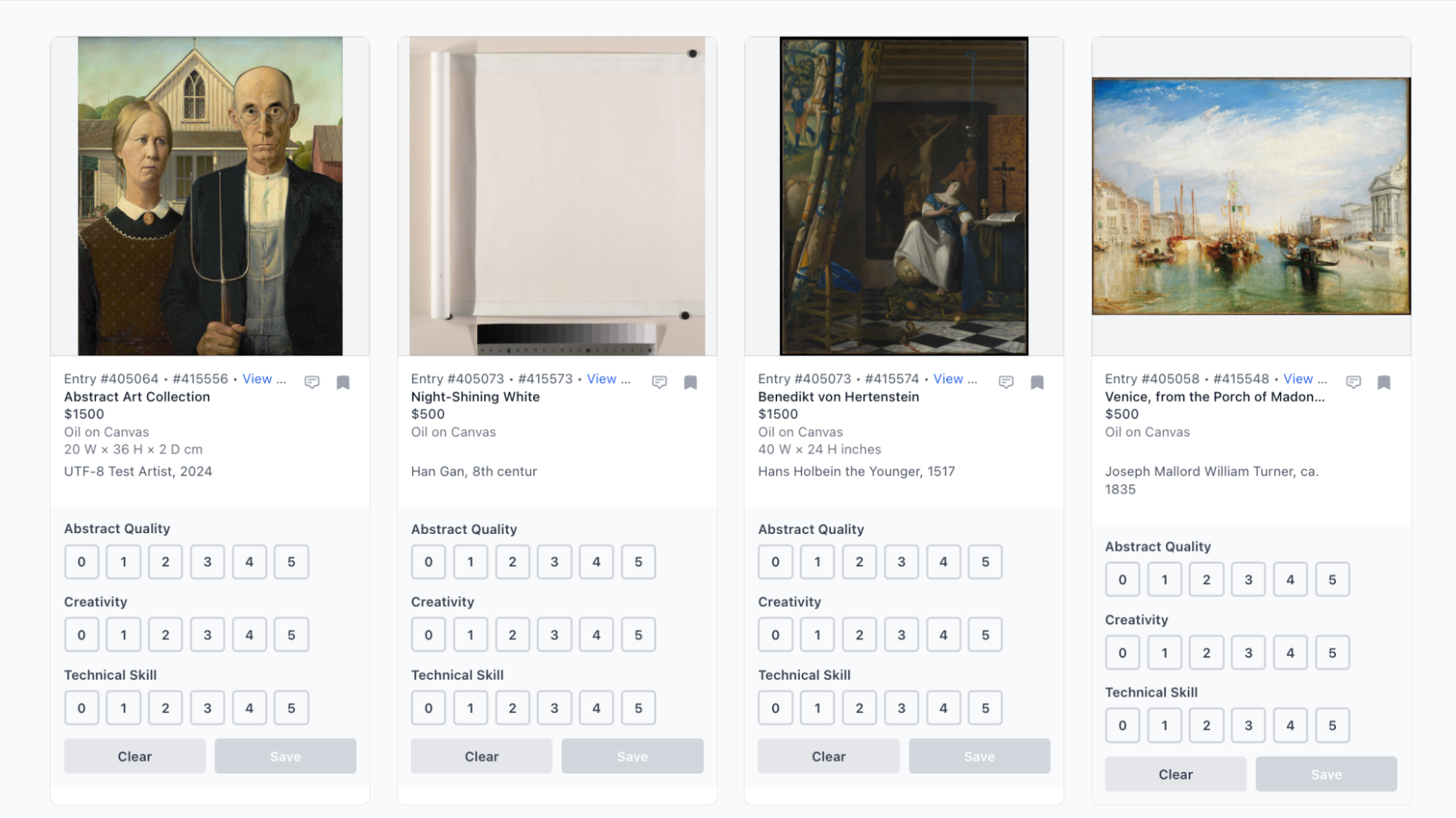
The scoring categories in piece voting may be more detailed than what you would see in a simple entry-juried call.
All of these categories are defined by the administrator. If they have provided instructions for how to interpret them, you will find those in the jury instructions section on the call page or in a briefing email they sent before you started.
You can click into any piece to see a larger view before scoring. When a call includes multiple mediums or themes, piece voting lets you filter by specific categories, from broad ones like Painting and Photography, so you can focus your review one category at a time.
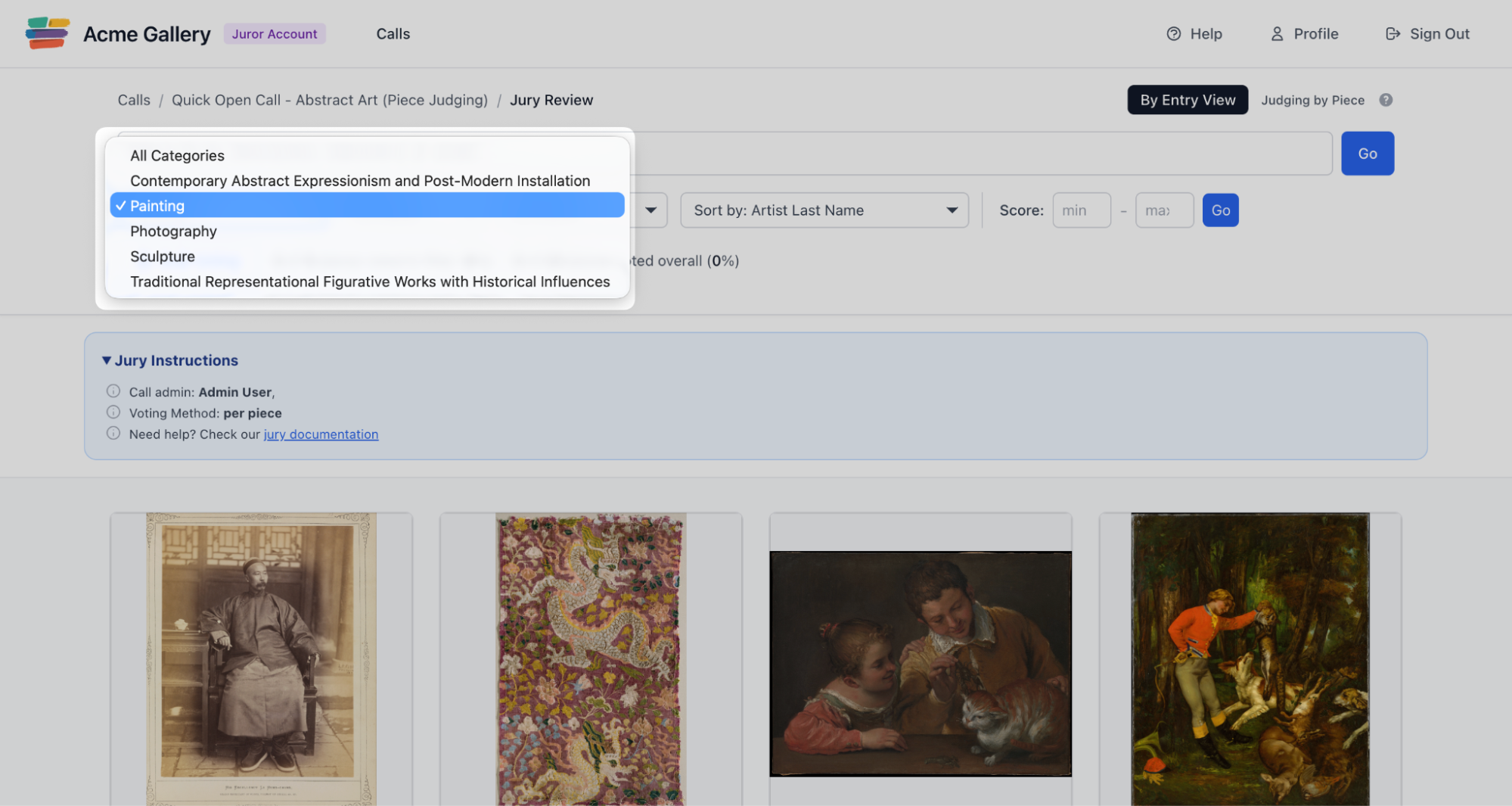
How Bulk Voting Works
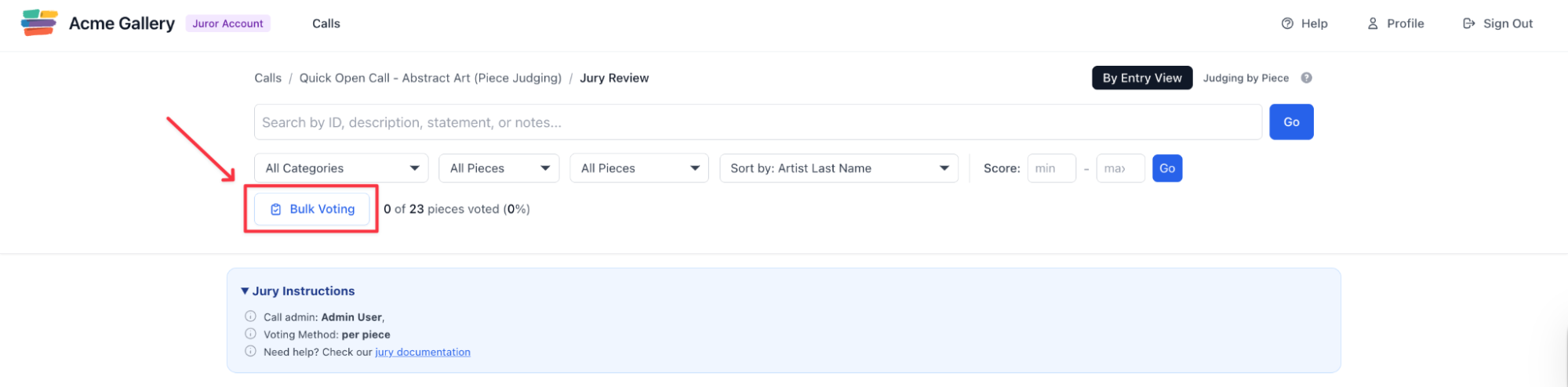
For larger calls, going through every submission one by one can be time-consuming. Bulk voting is a feature designed to speed up the process when you want to assign the same score to multiple pieces at once.
On EntryThingy, you activate bulk voting by clicking the Bulk Voting button on the jury wall.
Once you are in bulk voting mode, you can select multiple pieces using the checkboxes that appear on each one, choose your score for a given category, and apply it across all selected pieces in one action. When you are done, click Exit Bulk Voting to return to the standard view.
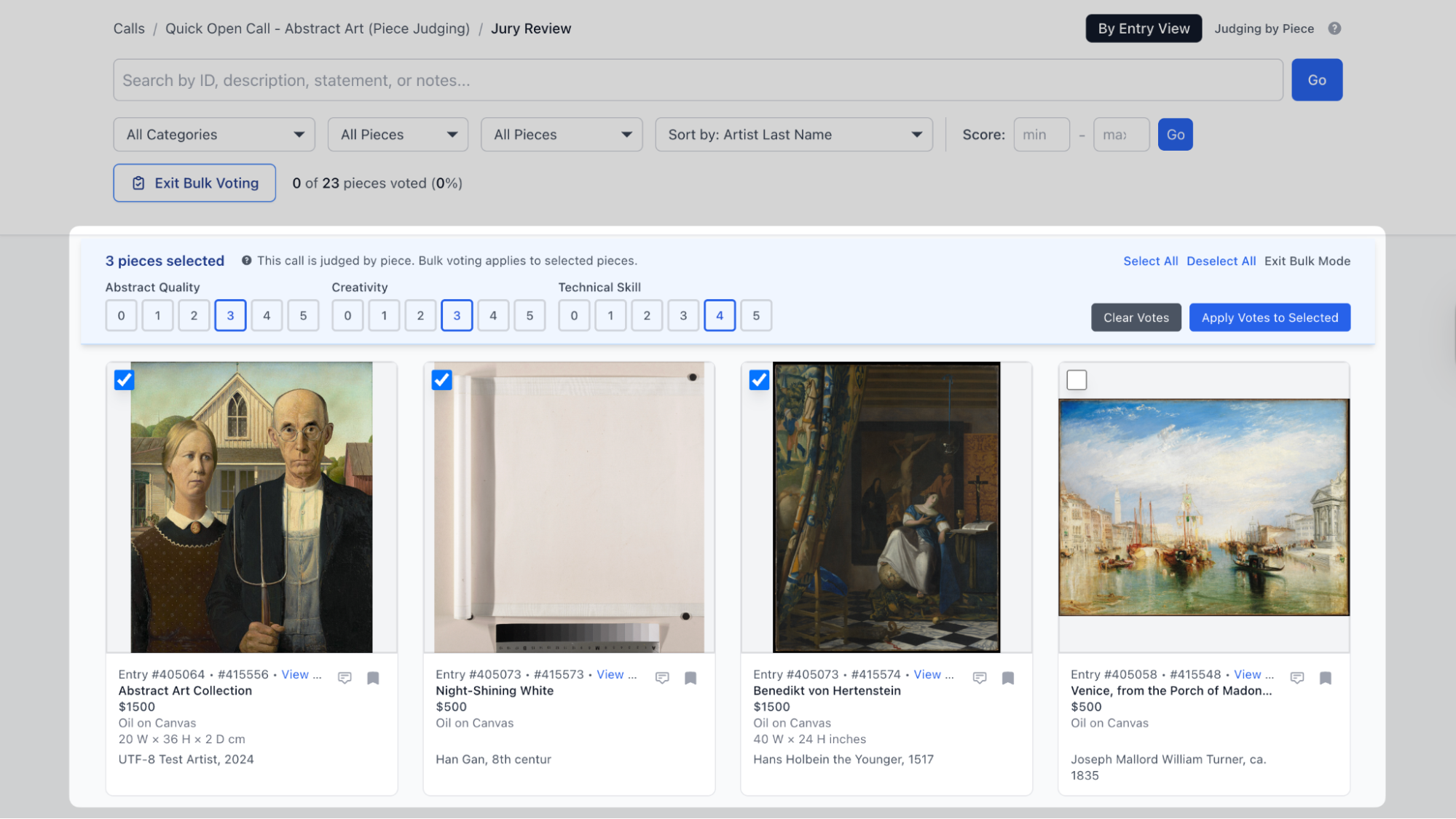
This is most useful on a first pass through a large call.
For example, if you immediately notice that several pieces score very high on technical skill, you can select all of them and assign a five for that category without clicking through each one individually.
It is also useful for clearing pieces that clearly do not fit the call's criteria before spending more focused time on the ones that deserve closer attention.
How to Use Bookmarks and Notes
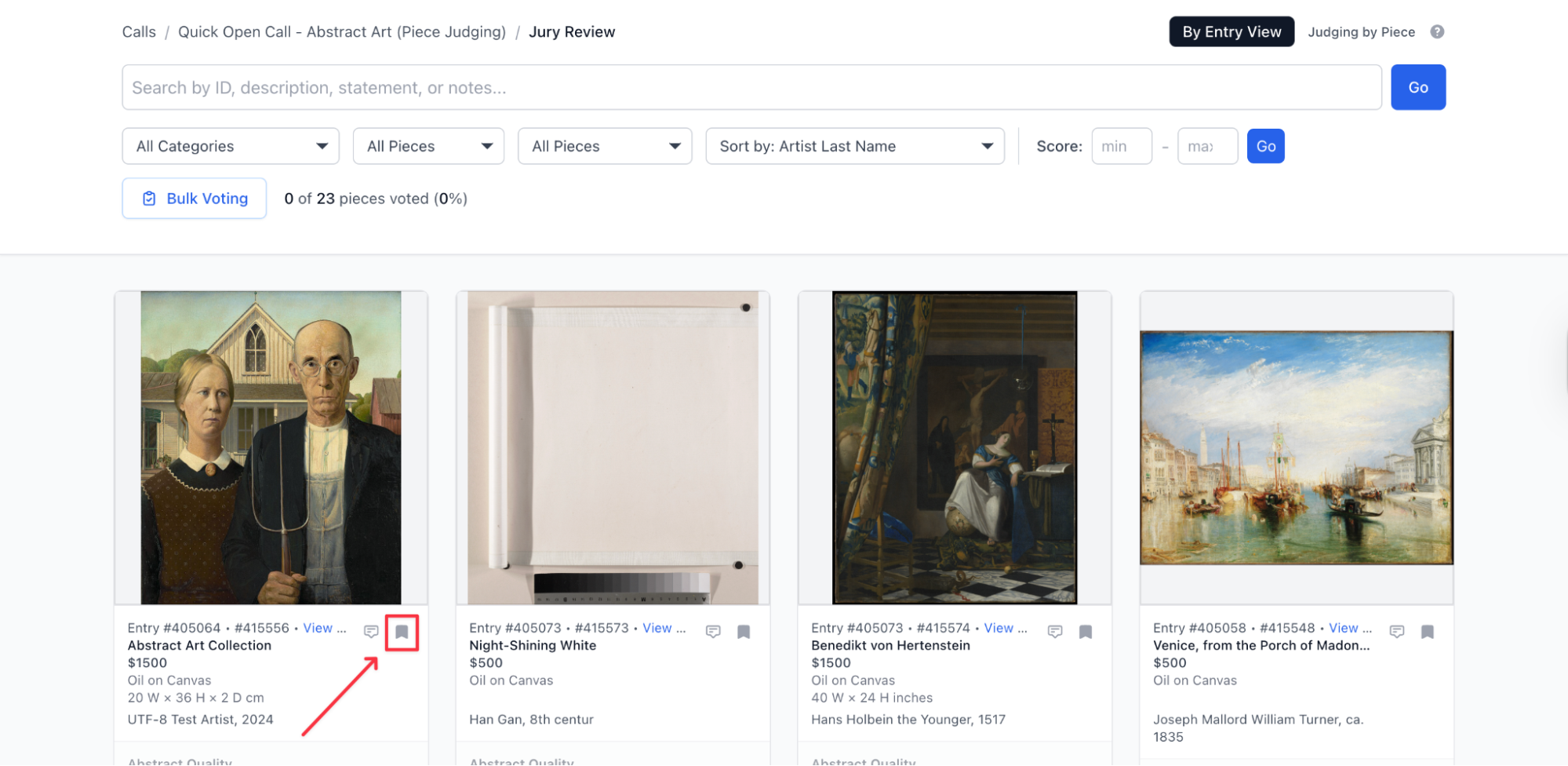
As you work through a large call, you will come across pieces you want to return to before making a final decision. On EntryThingy, you can bookmark any piece by clicking the flag icon on the piece card.
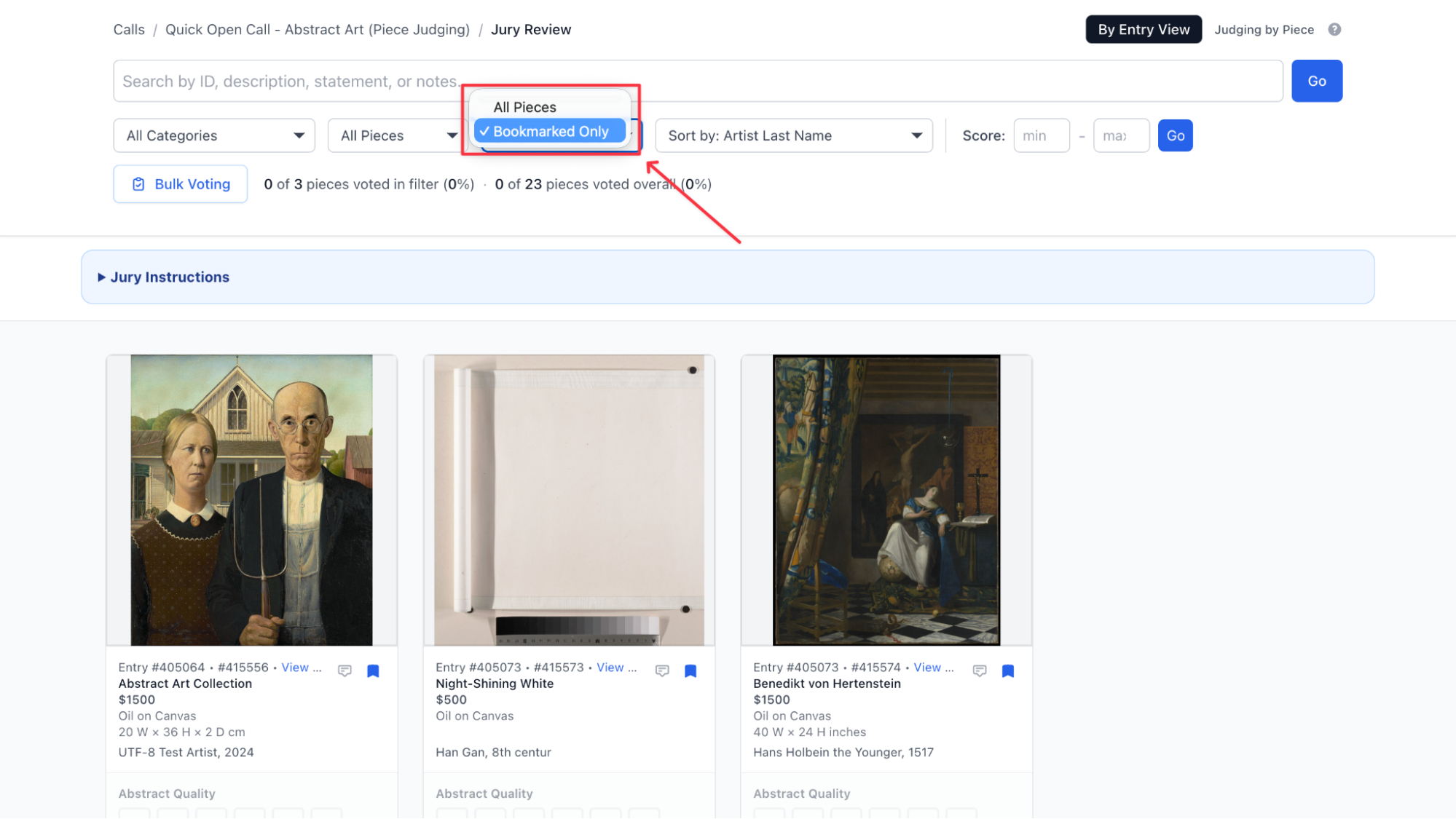
Once bookmarked, you can filter your entire queue to show bookmarked pieces only, so nothing gets lost in a pool of hundreds of submissions.
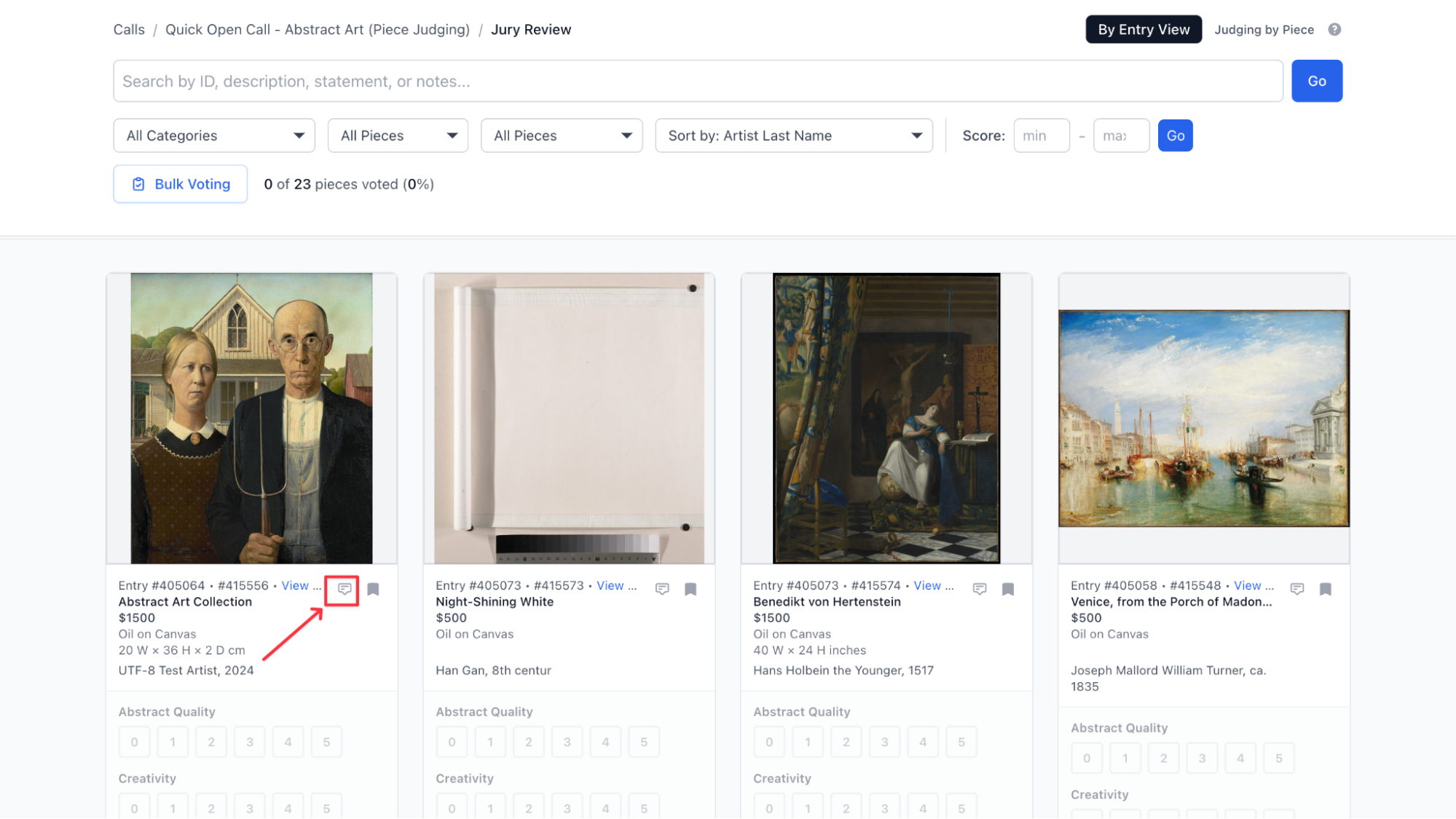
Notes work alongside bookmarks. Click the speech bubble icon on any piece to add a written note, whether it is a question about dimensions, a thought about theme fit, or anything else worth remembering.
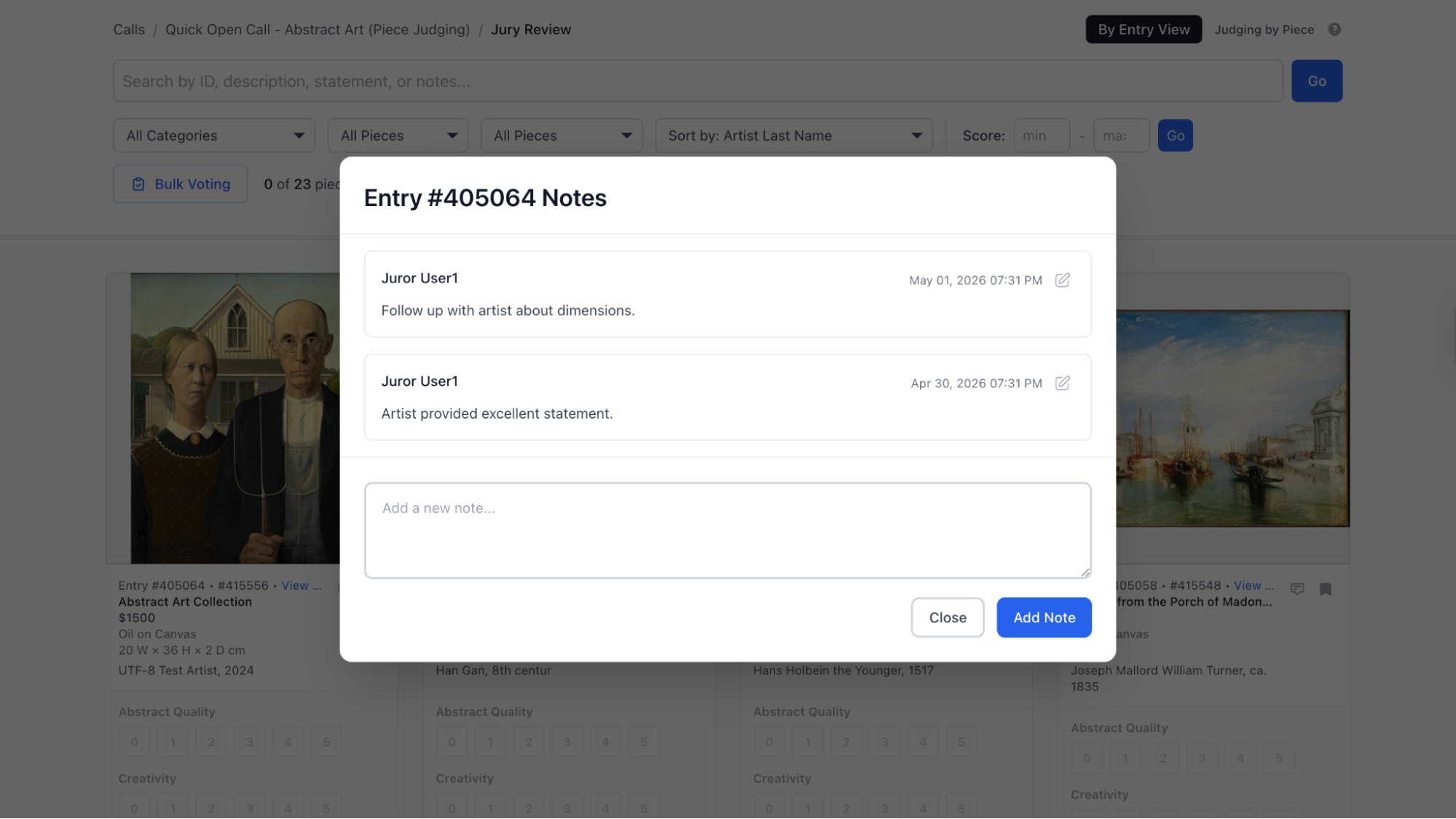
You can add multiple notes to the same piece and come back to edit them at any time during your review. If you are part of a panel, you can also see notes left by other jurors, which makes it easier to flag questions or share observations across the team before final decisions are made.
Together, bookmarks and notes give you a way to manage your thinking across a long review session without losing track of the pieces that need a second look.
What Happens After You Finish Voting
Once you have scored everything in your queue, your part as a juror is complete. All your votes are saved automatically. You do not need to submit them separately or notify the gallery that you are done. On EntryThingy, the administrator can see your progress in real time as you vote, so they know when you have finished.
Just make sure you complete your review before the jury results due date shown next to the call in your dashboard.
From there, the gallery takes over. They use the scores to rank submissions and make final decisions on which work is accepted. Different galleries handle this differently. Some set a score threshold and accept everything above it. Others use the rankings as a starting point for a curatorial conversation.
One thing worth knowing as you jury: every call may look a little different depending on how the administrator set it up.
The scoring categories, the jury format, the blind review settings, and even the number of pieces per submission can all vary from show to show.
If anything is unclear at any point, the jury instructions on the call page are always the first place to check. And if you need further help, the EntryThingy support team is reachable at hello@entrythingy.com.
Curious what artists see on the other side of the jury wall? Browse active calls to see how submissions are presented to applicants.
Browse Art CallsFAQs About Jurying an Art Show
What is the difference between voting by entry and voting by piece?
Voting by entry means you score each artist's full submission as one package, one decision per artist. Voting by piece means you score each individual artwork separately, so two works from the same artist can have different outcomes. The gallery sets this format before the call opens.
Why can I not see a call I was invited to jury?
The administrator needs to assign you to the call in their settings. Ask them to go into the call's edit settings, tick your name in the jurors section, and save. The call will appear in your dashboard after that.
Why are there no entries showing in a call I can see?
The administrator needs to move submissions to jury status. Entries still marked as submitted, not submitted, or assigned to a group will not appear in your queue until they update the status.
Why can I not see the artist's name?
The call is set up for blind jurying. The administrator has chosen to hide identifying information so scoring stays focused on the work itself. This is a setting they control.
Can I change a score after I have submitted it?
Yes. You can go back and update or clear any score until the administrator closes the jury.
What do the scoring categories mean?
That depends on the call. The administrator sets the categories and the scale for each show. If you are unsure, check the jury instructions on the call page or ask the administrator directly.
What happens after I finish voting?
The administrator uses your scores to make final decisions on which work is accepted. On EntryThingy, they can see your progress in real time, so you do not need to follow up separately when you are done.
What if the call looks different from what I expected?
Every call is configured differently by the administrator. The scoring categories, jury format, and blind review settings all vary from show to show. If anything is unclear, check the jury instructions on the call page first. If you still need help, contact EntryThingy support at hello@entrythingy.com.